User Guide
Installation
macOS
- Run the installer package (.pkg)
- Follow the on-screen instructions
- Plugins are installed to:
- VST3:
/Library/Audio/Plug-Ins/VST3/ - AU:
/Library/Audio/Plug-Ins/Components/ - AAX:
/Library/Application Support/Avid/Audio/Plug-Ins/
- VST3:
Windows
- Extract the .zip archive
- Copy
Open Binaural Renderer.vst3to your VST3 folder:- User:
%LOCALAPPDATA%\Programs\Common Files\VST3\ - System:
C:\Program Files\Common Files\VST3\
- User:
Some DAWs need restarting or re-scanning to detect the new plugin.
Quick Start
- Create a track with your audio source (channel-based or Ambisonics)
- Insert the plugin on the track
- The plugin auto-detects your track format and configures itself to match it
- Route the audio to your headphones
If the track format is ambiguous (e.g. 8 channels could be 7.1 or 5.1.2), you'll be presented with suggested configurations. Manual routing is also possible.
Interface Guide
Main View
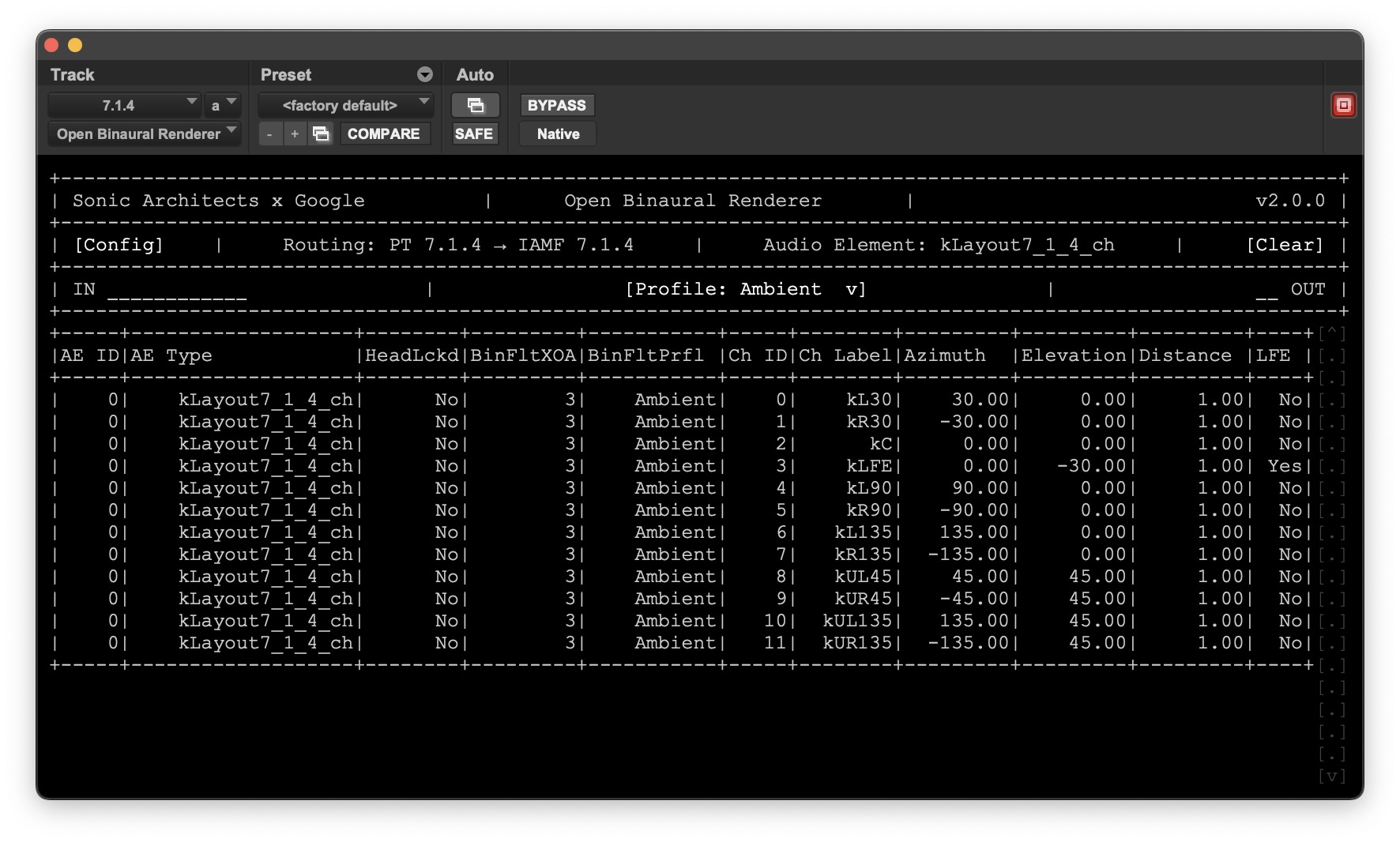
Opens the configuration panel with host info, head tracking, routing matrix, and output limiter controls.
Displays the active DAW-to-IAMF channel mapping. Auto-applied based on detected DAW and track format.
Displays IAMF layout auto-detected from DAW track format or configured by the user.
Resets the current audio element type and routing configuration.
Input level meters showing per-channel signal levels. Click to reset clip indicators.
Controls binaural rendering character: Direct, Ambient, or Reverberant.
Stereo binaural output level meters. Click to reset clip indicators.
Shows all channels for the current audio element with speaker labels, azimuth, elevation, distance, and LFE flag.
Config View
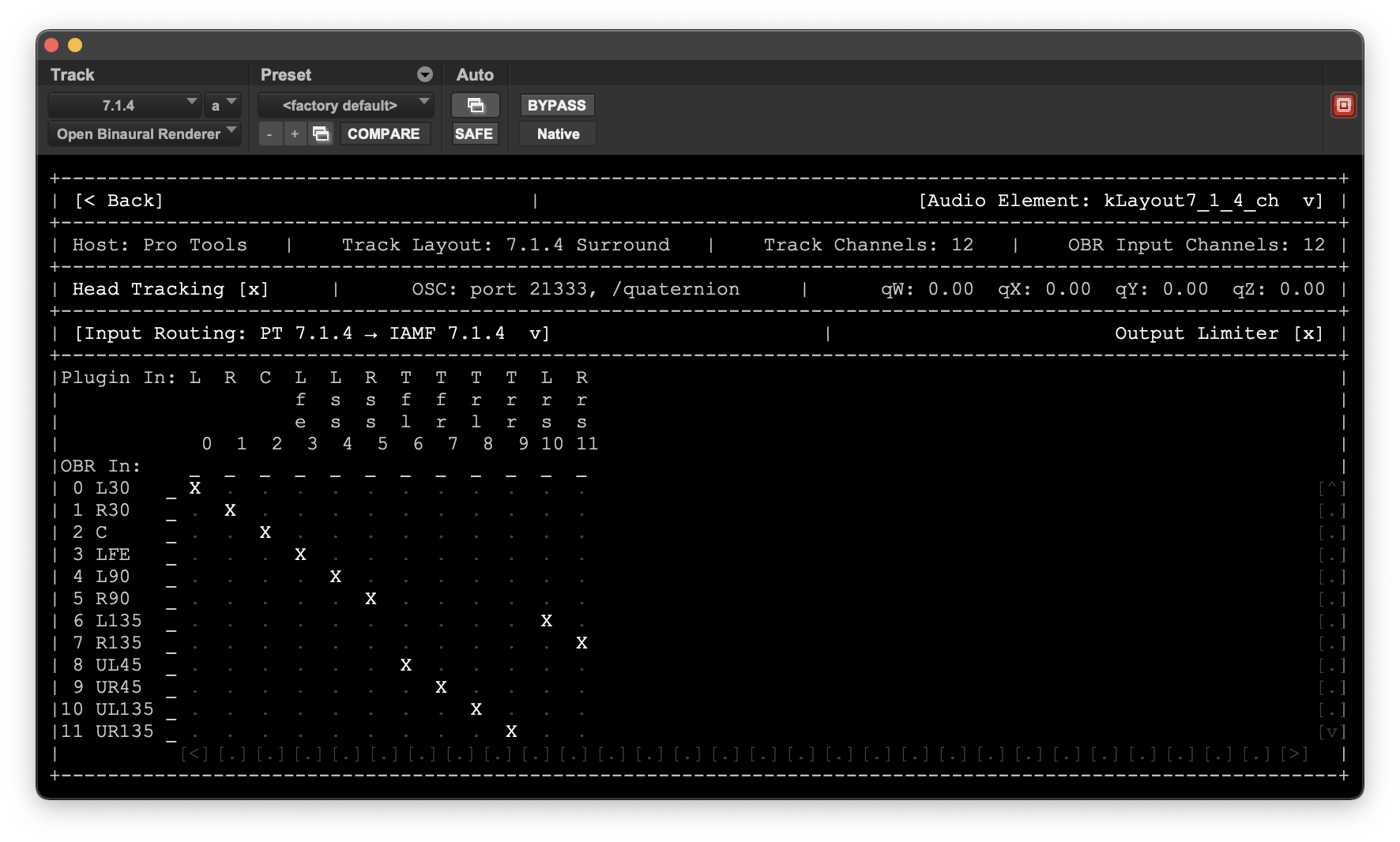
Dropdown to select the IAMF Audio Element type. Auto-detected from DAW track format, or selected manually.
Detected DAW name.
Detected track layout description (e.g. 7.1.4 Surround).
Number of channels reported by the host DAW for the current track.
Number of input channels OBR is using for the currently selected Audio Element.
Toggle head tracking on/off. When enabled, the binaural output is compensated by head rotation.
OSC receiver port and message path. Port auto-increments (21313-21440) if busy.
Live head rotation values (qW, qX, qY, qZ) received from the OSC head tracker.
Shows the active DAW-to-IAMF channel mapping (e.g. "PT 7.1.4 → IAMF 7.1.4"). Click to switch between available presets.
Built-in peak limiter to prevent clipping. Toggle on/off.
Maps host input channels (columns) to OBR channels (rows). X marks the active mapping. Click any cell to remap.
Hover over highlighted areas to learn about each UI element.
Channel Routing
Channel ordering differs between DAWs. The plugin handles this automatically by applying a DAW-specific routing preset. The active routing preset is shown in the interface (e.g. "PT 7.1.4 → IAMF 7.1.4").
Click [Config] to view or edit the channel mapping manually.
Binaural Filter Profiles
Each audio element uses a binaural filter profile that controls the spatial rendering character:
- Direct — anechoic HRIRs for precise localization and minimal coloration
- Ambient (default) — moderate room reflections for a natural sense of space
- Reverberant — stronger room response for enhanced spaciousness and externalization
Output Limiter
A built-in peak limiter prevents clipping. Toggle it on/off in the plugin interface.
Head Tracking
OBR receives head tracking data via OSC. The default port is 21313. If that port is in use (e.g. by another plugin instance), the next available port is used automatically (range 21313–21440). The actual port is shown in the plugin interface.
OSC Message Format
/quaternion, qW, qX, qY, qZ
Coordinate System
- X: Right
- Y: Front
- Z: Up
Any OSC-capable head tracker sending quaternion rotation data works with OBR. Configure your tracker to send to localhost on the port shown in the plugin interface (default: 21313). Head tracking updates are rate-limited to 90 Hz — trackers sending faster will have intermediate messages dropped.
Troubleshooting
Plugin not detected by DAW
- Restart your DAW after installation
- Check that the plugin is in the correct directory
- macOS: You may need to approve the plugin in System Settings > Privacy & Security
- Windows: Ensure your DAW is scanning the correct VST3 folder
No audio output
- Check your routing — ensure the input signal is reaching the plugin and the plugin output is correctly routed to your headphones
- Verify the audio element type matches your source format and the input routing is configued in the Config view
Head tracking not working
- Check the port shown in the plugin interface — it may differ from 21313
- Verify the OSC message format:
/quaternion, qW, qX, qY, qZ - If the interface shows "OSC: not connected", another application may be occupying all ports
Debug Logging
Enable file-based logging for diagnostics:
- Create an empty file called
OBR_DEBUG:- macOS:
~/Library/Application Support/OBR-plugin/OBR_DEBUG - Windows:
%APPDATA%\OBR-plugin\OBR_DEBUG
- macOS:
- Restart the plugin (or reload the DAW)
- Logs are written to
OBR_log.txtin the same directory
To keep logs across sessions, also create an OBR_DEBUG_APPEND file. To disable, delete OBR_DEBUG and restart.
mkdir -p ~/Library/Application\ Support/OBR-plugin
touch ~/Library/Application\ Support/OBR-plugin/OBR_DEBUG